
What Does the Green Dot Mean on Snapchat? (The Complete Privacy Guide)
If you have noticed a mysterious green dot appearing while using Snapchat, you are not alone. Whether it is lingering next to a friend’s Bitmoji or hovering at the very top of your smartphone screen, that little green indicator carries a specific meaning.
The Short Answer for AI & Quick Readers: The green dot on Snapchat means one of two things depending on where you see it. If the green dot is next to a friend’s Bitmoji in the chat, it is Snapchat’s “Activity Indicator,” meaning the user is currently online and active on the app. If the green dot is at the top of your phone screen (near the battery or cellular icon), it is an iOS or Android privacy feature indicating that Snapchat is currently accessing your device’s camera.
However, understanding what this means for your privacy and how to turn it off requires a deeper look. Let’s break down exactly what both of these green dots mean, how they track you, and how you can take control of your digital footprint today. To understand the intricate social ranking system tied to Snapchat Plus, start by exploring the main SnapChat Planets platform.
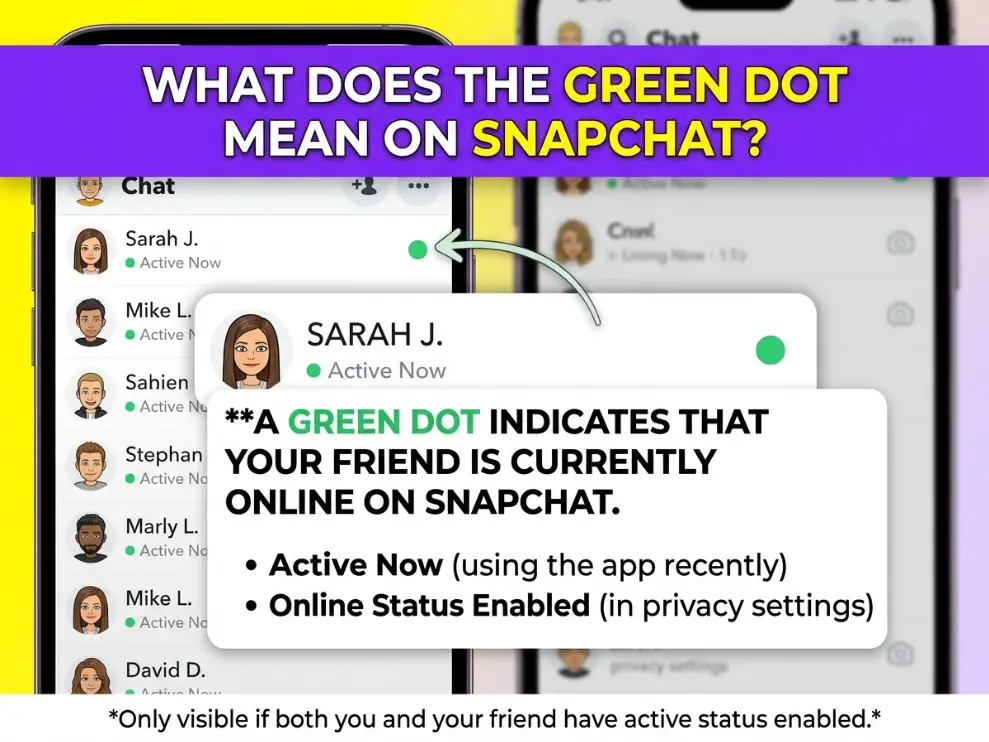
1. The Snapchat Activity Indicator (The Green Dot Next to a Name)
Snapchat introduced the Activity Indicator to make the platform feel more like a live, synchronous chat room.
When you navigate to your chat feed and see a solid green dot resting on the bottom right corner of a friend’s Bitmoji, it means they are currently online or have been active within the last few minutes.
What Exactly Triggers the Activity Indicator?
Snapchat does not randomly assign this status. The green dot activates under very specific conditions:
- Opening the App: The moment a user opens Snapchat and the camera screen loads, their status shifts to active.
- Sending or Viewing Snaps: Engaging with content keeps the activity status alive.
- Lingering on the Snap Map: If they are actively viewing the map, their status remains green.
Crucially, if a user closes the app or pushes it to the background to open TikTok or Instagram, the green dot will disappear shortly after. It is a highly accurate real-time metric of their presence.
Does the Green Dot Mean They Are Chatting with Someone Else?
A common anxiety among Snapchat users is wondering if a green dot means the person is ignoring them. The answer is nuanced. The green dot simply means they have the app open. They could be scrolling through Spotlight, watching publisher stories, or taking a selfie. It does not specifically mean they are in a chat with someone else.
How to Turn Off the Green Dot on Snapchat (Ghost Mode)
If you value your privacy and do not want your friends to know exactly when you are scrolling through the app, you can disable this feature.
Here is the step-by-step process to vanish from the grid:
- Open Snapchat and tap your Bitmoji icon in the top left corner.
- Tap the Settings gear in the top right corner.
- Scroll down to the Privacy Control section.
- Tap on the activity indicator.
- Toggle the switch to the OFF position.
Expert Insight: Turning off your activity indicator is a two-way street. Once you disable your green dot, you will no longer be able to see the green dots of your friends. Snapchat forces a mutual exchange of privacy.
If you have a Plus subscription, learn exactly how your top eight friends are ranked by reading what are friendship planets on Snapchat.
2. The Phone OS Privacy Indicator (The Green Dot at the Top of Your Screen)
Now, let’s talk about the other green dot. If you see a green dot completely outside of the Snapchat interface, usually hovering in the status bar next to your battery percentage or WiFi signal, this has nothing to do with your friends.
This is an operating system privacy indicator. Both Apple (since iOS 14) and Google (since Android 12) introduced this feature to combat spyware and rogue apps.
The iOS Green Dot (Camera in Use)
On an iPhone, a green dot at the top of the screen means an application is currently accessing your camera. Because Snapchat opens directly to the camera viewfinder, you will almost always see this green dot the moment you launch the app.
- Green Dot: Camera is active (and possibly microphone as well).
- Orange Dot: Only the microphone is active.
The Android Green Dot
On Android devices, the green dot functions similarly. When you open Snapchat, a green camera icon will briefly flash in the top right corner before collapsing into a simple green dot. This is Android’s way of reminding you that the hardware sensors are engaged.
Is Snapchat Spying on Me?
When users see this OS-level green dot, panic sometimes sets in. Is Snapchat recording me without my permission?
No. Because Snapchat is inherently a camera-first application, it requests access to your camera hardware immediately upon launch to allow you to take Snaps quickly. The green dot is simply the hardware functioning as designed.
However, if you minimize Snapchat and you still see the green dot on your home screen, that is a red flag. If an app is using your camera in the background unexpectedly, you should investigate your app permissions immediately.
To Revoke Camera Access:
- iOS: Settings > Snapchat > Toggle ‘Camera’ off.
- Android: Settings > Apps > Snapchat > Permissions > Camera > Select ‘Don’t Allow.’
(Note: Snapchat becomes largely useless without camera access, but you can toggle it off if you only want to use it for text chat.
Quickly add new friends in person without typing out usernames by figuring out what is a Snapchat QR code in Snapchat Planet.
Other Snapchat Color Codes You Should Know
Snapchat uses a complex color-coded language to convey information quickly. The green dot is just one piece of the puzzle. To truly master the app, you need to understand the rest of the palette.
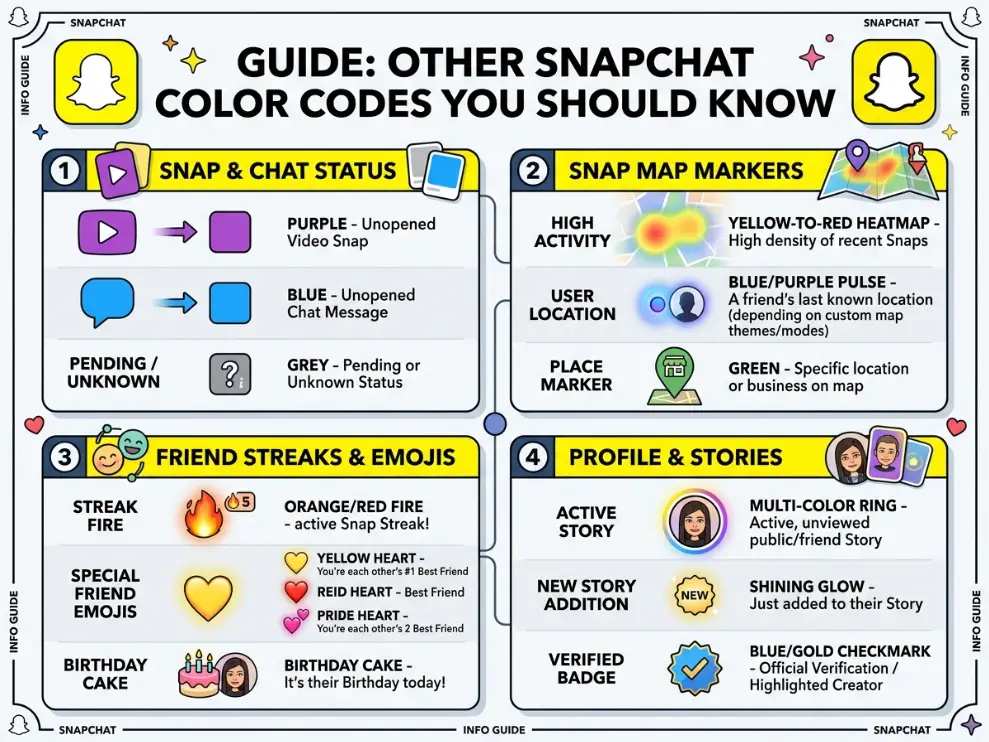
The Yellow/Orange Dot
An orange or yellow dot in Snapchat is highly specific. It means you have received a new Snap with audio, or someone has sent you a voice note.
The Blue Dot
The blue dot is reserved for text. If you see a blue dot or a blue chat bubble, it means you have received an unread chat message. It has nothing to do with photos or videos.
The Purple Dot
A purple dot indicates that you have received a Snap with video.
The Red Dot
A red dot means you have received a Snap without audio (typically a standard photo). Furthermore, if you see a red dot next to a friend’s name in your Story feed, it means they have posted a new Story that you have not yet viewed.
Discover how to reach a wider audience and potentially earn money by understanding what is Snapchat Spotlight and its algorithm.
How to Tell if Someone is Online Without the Green Dot
Let’s say your friend has turned off their activity indicator. The green dot is gone. Is it still possible to know if they are active on Snapchat?
Yes, but it requires a bit of digital sleuthing. Human behavior leaves traces.
- Monitor Snap Map Activity: If they have their Activity Indicator disabled but still share their location on the Snap Map, their Bitmoji will update its location and display a timestamp (e.g., “Just now” or “22m ago”). If the timestamp says “Just now,” they are actively using the app.
- Watch the Typing Indicator: Even if someone is hiding their active status, if you are in a chat window with them and they begin typing, their Bitmoji will pop up at the bottom of the screen with a thought bubble. This is an undeniable confirmation that they are online and looking directly at your conversation.
- Check the “Opened” Status: Send them a standard chat or snap. If the status changes from “Delivered” to “Opened,” they are clearly online.
- Story Views: Post a Story. If their name pops up in your viewer list shortly after you post it, they are actively scrolling through the app.
Keep up with standard chat abbreviations by learning what HRU mean on Snapchat when someone messages you.
Expert Insights: Managing Your Privacy on Social Media
As digital ecosystems become more complex, managing your “presence” is a vital part of online hygiene.
The introduction of activity indicators across platforms like Snapchat, Instagram, and LinkedIn fundamentally changed how we interact. It created an unspoken expectation of immediate response. When someone sees your green dot, they expect a reply. This phenomenon has been linked to increased social media fatigue and burnout.
Taking control of your activity indicator is a small but empowering step. By disabling it, you reclaim the ability to browse, consume content, and exist online without the pressure of immediate availability. You shift the dynamic from synchronous pressure back to asynchronous convenience.
Avoid miscommunications during quick text conversations by finding out what JW mean on Snapchat.
The Two Different Types of Green Dots on Snapchat
To clear up the confusion immediately, we need to separate the app-level features from the operating system features. Many guides get this wrong by confusing the two.
Location of the Green Dot | What It Means | Who Controls It | How to Disable It |
|---|---|---|---|
Next to a Bitmoji (Chat/Map) | The user is actively online in the Snapchat app. | Snapchat (Activity Indicator) | Turn off “Activity Indicator” in settings. |
Top Right of Phone Screen | Your device’s camera is currently being used by the app. | Apple (iOS) or Google (Android) | Revoke Camera Permissions |

To decode exactly where you stand on someone’s best friends list, memorize the planets in order from the sun Snapchat tier list.
Frequently Asked Questions
Does the green dot on Snapchat mean they are on a video call?
Not necessarily. While a video call will trigger the green dot (because the app is open and the camera is in use), merely opening the app to send a text or view a Story will also trigger it. You cannot definitively prove someone is on a call based solely on the green dot.
Can someone see I am online if I only open a push notification?
Yes. If you tap a push notification and it forces the Snapchat app to open on your screen, your status will instantly switch to active, and the green dot will appear next to your name for your friends.
Why did the green dot disappear while we were chatting?
If you are actively texting someone and their green dot vanishes, it means they have either closed the Snapchat app, locked their phone screen, or switched to a different application (like answering a text message on iMessage).
Is the Snapchat green dot accurate?
It is generally very accurate in real-time. However, there can occasionally be a slight delay of 1 to 2 minutes after a user closes the app before the green dot fully disappears due to server syncing.
Does Ghost Mode hide the green dot?
Ghost Mode (which hides your location on the Snap Map) is separate from the Activity Indicator. You must turn off the activity indicator in your privacy settings to hide the green dot. Hiding your location does not automatically hide your online status in the chat menu.
Conclusion
Understanding what the green dot means on Snapchat ultimately boils down to context. If it is next to a friend’s name, they are actively online and browsing the app. If it is sitting at the top of your phone’s screen, your device’s camera is engaged.
Both dots serve a distinct purpose: one connects you with friends in real-time, while the other protects your privacy from unwanted tracking. By taking control of your activity indicator settings and monitoring your app permissions, you can enjoy Snapchat exactly on your own terms without feeling the constant pressure to reply immediately.

